Brokers
SoFi
Connect a SoFi account for RSA trading, set up its authenticator 2FA key, and sign in through the app.
SoFi is a commission-free broker for stocks and ETFs. TradeLabs signs in the same way you would on sofi.com, driving a real Chrome window in the background, so after-hours orders get queued and fill when the market reopens. It works as an RSA fan-out target and for plain stock trades.
| What it trades | Supported |
|---|---|
| RSA (reverse split arbitrage) | Yes |
| Stocks | Manual orders only, from the Trade page. An automated Stocks strategy routes to Tradier, IBKR, Robinhood, or STG / DAS instead. |
| Options, spreads, crypto | No |
SoFi requires an authenticator-app 2FA key. You set this up in the SoFi app and save the long setup key, then paste it into the connect form once. After that the bot generates your codes for you.
Before you start
- A SoFi Direct Self Invest account, funded and verified.
- Authenticator 2FA turned on in the SoFi app, with the setup key saved (steps below).
- The TradeLabs Companion installed and running.
Set up your 2FA key
You do this once, in the SoFi mobile app, before you connect anything. The key you save here is what the bot uses to sign in every time after.
-
Open the SoFi mobile app and go to Settings → Security.
-
Select Two-Factor Authentication, then choose Authenticator App as the method.
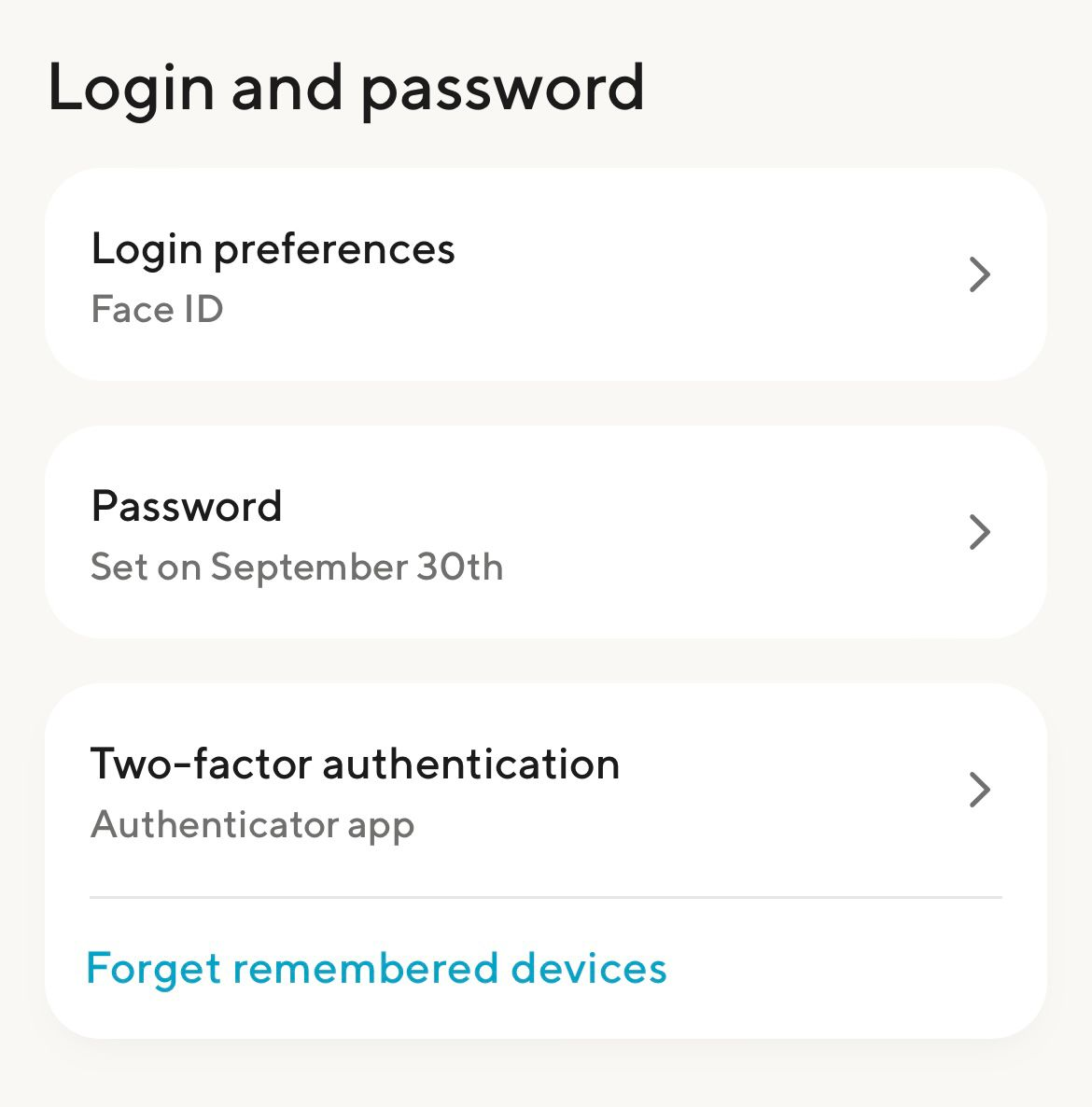 In the SoFi app’s security settings, open Two-factor authentication. Once setup is done it reads Authenticator app.
 -
SoFi shows a QR code. Do not scan it yet. Tap Trouble Scanning? underneath it, which reveals the setup key as text.
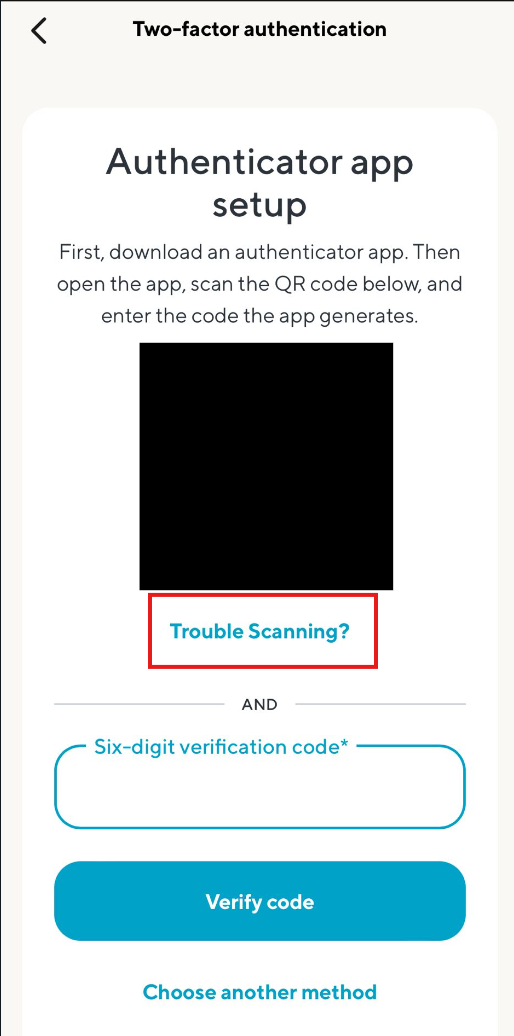 Tap Trouble Scanning? under the QR code to see the setup key as text.
 -
Copy that key and save it somewhere you will still have it in a year. It looks like a long run of capital letters and digits, around 32 characters:
ONTDS4KFK55DMVDBLZEFG3JUHB4XK2LP -
Add the same key to an authenticator app on your phone — Google Authenticator, Authy, 1Password, any of them. Enter it by hand rather than scanning.
-
Finish SoFi’s setup by entering the 6-digit code your authenticator now shows.
-
Sign out of the SoFi app and sign back in with a fresh code from your authenticator. This proves the key you saved is the right one before TradeLabs depends on it.
SoFi shows this key once. Once you finish setup, there is no screen that shows it again. If you did not save it, you have to turn 2FA off and back on in the SoFi app to get a new one, then update it in TradeLabs.
Save the long setup key, not a 6-digit code. The two are easy to confuse. The setup key is about 32 characters and never changes; the 6-digit code changes every 30 seconds. The bot generates the codes itself from the key. Paste a 6-digit code by mistake and SoFi signs in once, then every later sign-in fails.
Connect it in the app
- Open the Brokers page, find the SoFi card, and click Add account.
- Fill in the connect form and click Save account. Your credentials are encrypted on your device.
- Email: your SoFi email.
- Password: your SoFi password.
- Authenticator setup key: the long key you saved (not the 6-digit code).
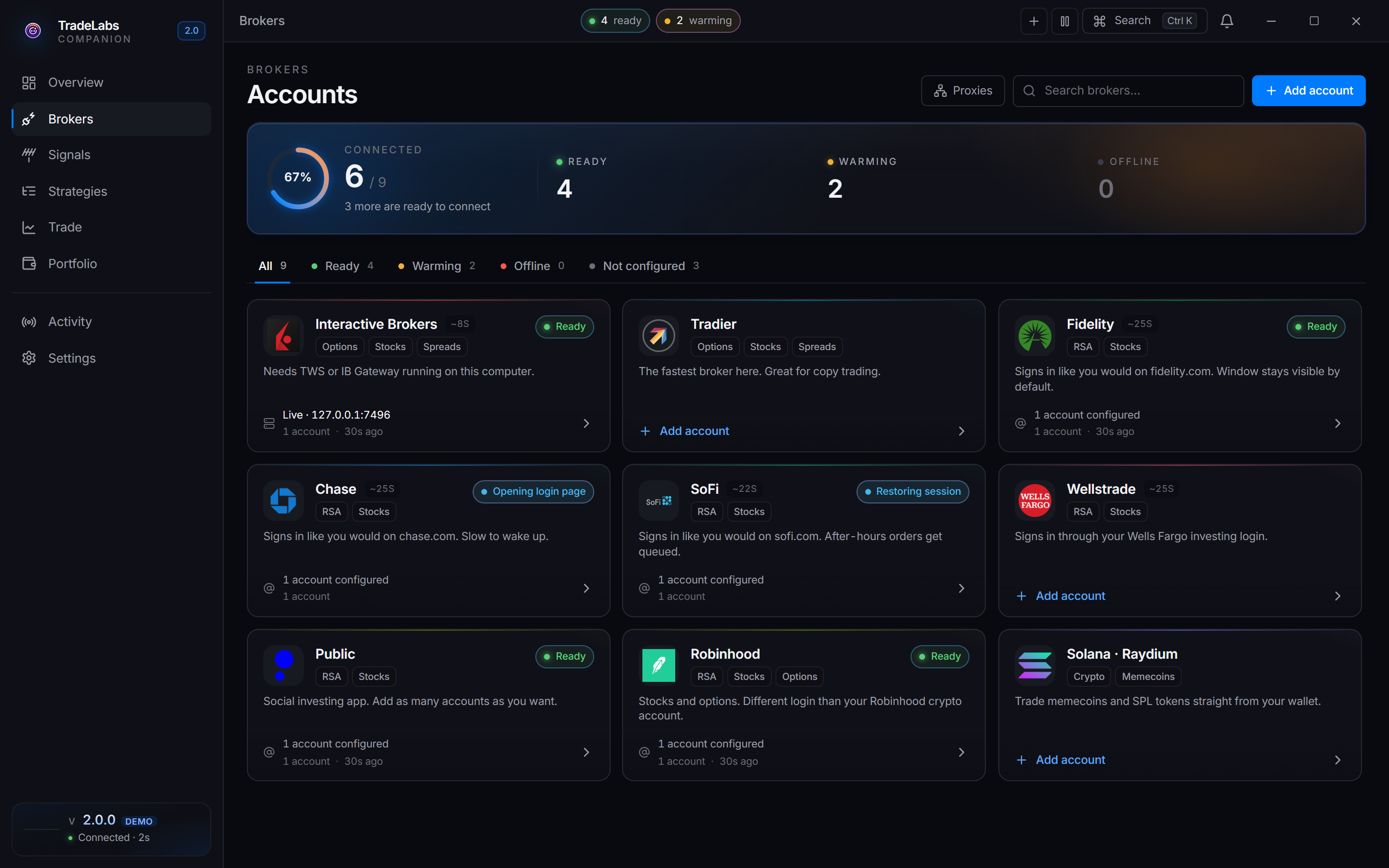
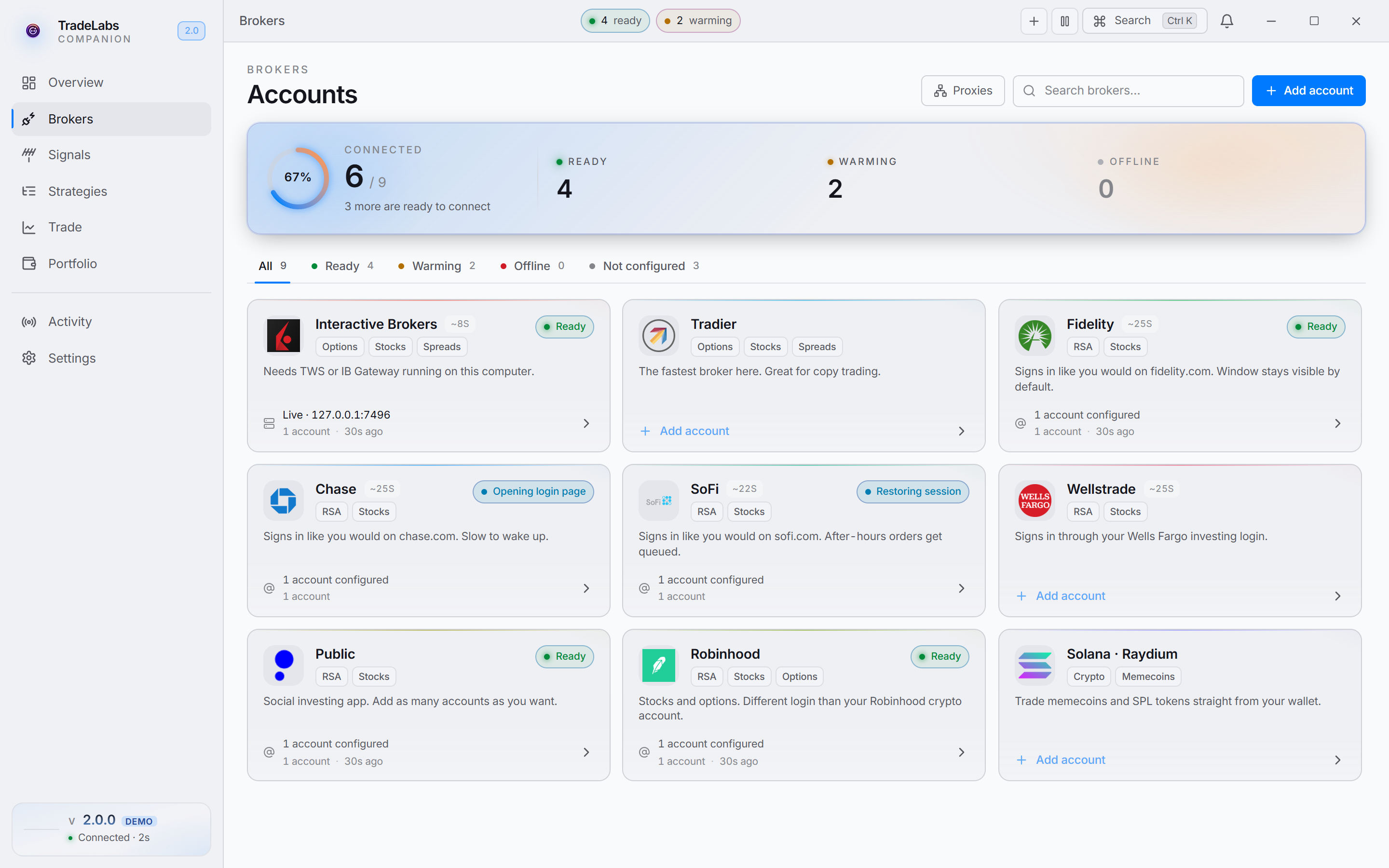 Click a broker card, then Add account, to open the connect form
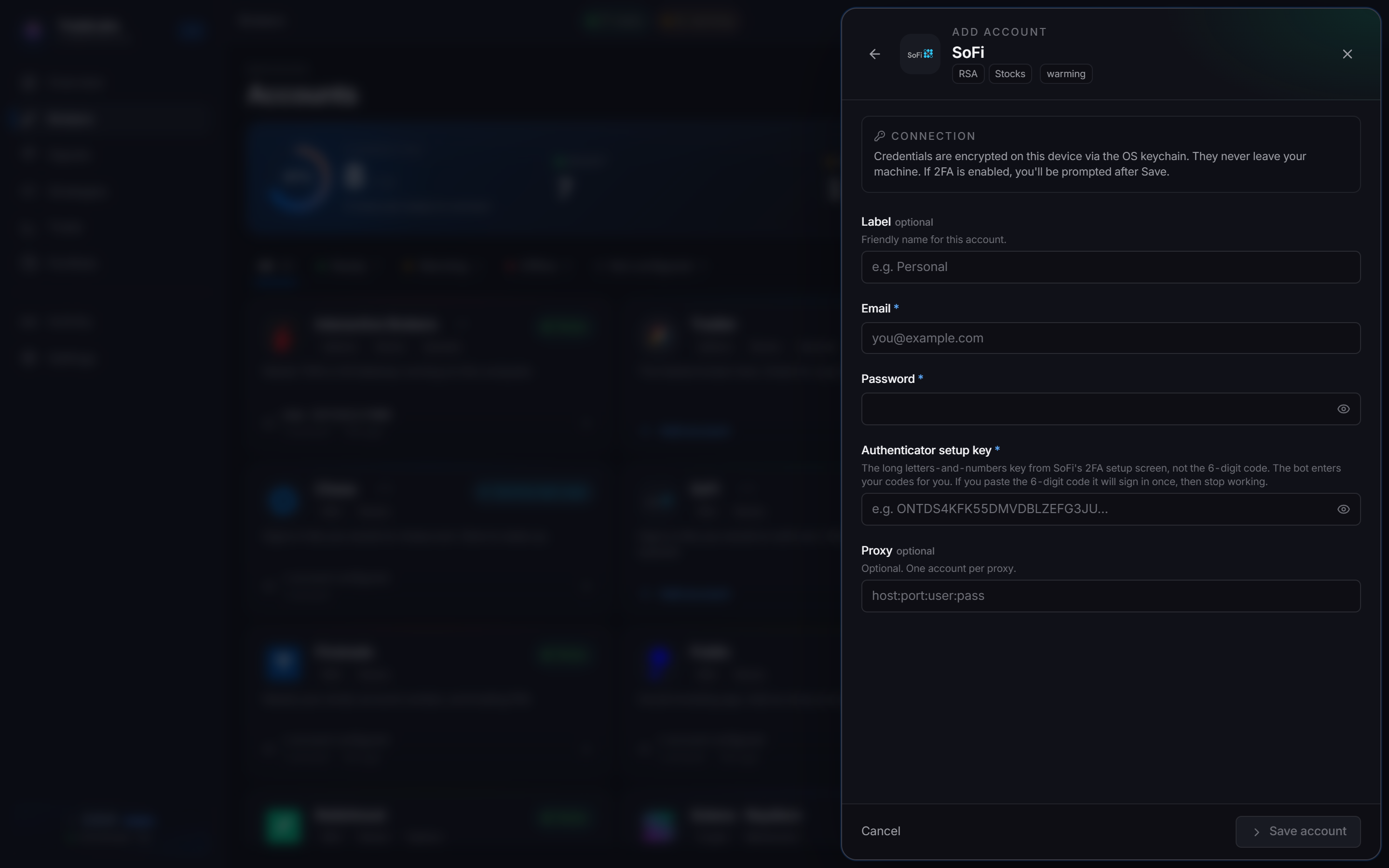
 Enter your email, password, and the authenticator setup key from your 2FA setup
- Click Sign in on the account row. SoFi opens a browser window and signs in. It generates the 2FA code from your saved key, so you do not type a one-time code.
When sign-in succeeds you see a SoFi signed in confirmation and the row switches to a signed-in state.
The sign-in window stays visible
SoFi always signs in through a visible browser window. On the account row the browser control reads Browser: Visible with a Locked badge, and it cannot be switched to hidden. SoFi sign-in is unreliable when the window is hidden, so it is fixed on visible. Keeping it visible also lets you watch the sign-in and step in if SoFi shows an unexpected prompt.
Connection status
The app shows SoFi as Active, Idle, Warming, or Offline. Idle means logged in but not recently re-checked, such as overnight. That is normal and does not mean the broker is broken.
Fixing common problems
Start here: which code does SoFi send you?
Nearly every SoFi sign-in problem comes from a 2FA setup that did not finish. One question tells you which one you have.
Sign in to the SoFi app yourself and watch what it asks for.
- It texts you a code. Your 2FA setup never completed, so SoFi is still on SMS and the key you saved was never switched on. Go back through Set up your 2FA key from the beginning, and this time finish step 6 — SoFi only switches you over once you enter a code from your authenticator and it accepts it.
- You read a code from your authenticator app. The key is live. Your problem is which value you pasted into TradeLabs — see below.
The three most common causes
- Every sign-in fails after the first: you pasted the 6-digit code instead of the long setup key. The 6-digit number is what your authenticator shows, and it changes every 30 seconds. The setup key is the ~32-character string that generates it. Edit the credentials and paste the long key.
- SoFi still texts you a code: the setup was never finished. See the question above.
- You cannot sign in to SoFi yourself any more: you saved the key into TradeLabs but never added it to your own authenticator app (step 5). It is the same key and it works in both places at once — add it to your authenticator by hand and you are back in.
Everything else
- Sign-in fails: confirm your email and password, and that the account is in good standing in the SoFi app.
- Stuck sign-in: open the account row’s ⋯ menu and use Clear browser data, then sign in again. Your saved email and password are kept.
Browser keeps freezing: install Chrome Canary
If SoFi sign-in still misbehaves after Clear browser data, the problem is usually your installed Chrome. Signs of this:
- the SoFi window freezes or goes blank during sign-in
- repeated timeouts, or a sign-in that loops back to the login page
- trades to SoFi that never go through
The fix is Chrome Canary, Google’s nightly build of Chrome. The SoFi connection looks for Canary first and uses it automatically when it is installed.
-
Download and install Chrome Canary from google.com/chrome/canary. It installs alongside your normal Chrome and does not replace it.
-
Fully close the TradeLabs Companion and open it again.
-
Click Sign in on the SoFi account row. It now runs in Canary.
You only need Canary if you have these problems. If SoFi signs in reliably with your normal Chrome, leave it as it is.
Using SoFi with RSA
A new SoFi signup allows 8 accounts: 4 cash + 4 IRA, opened at a cadence of 1 per day. Older SoFi accounts keep the previous 14-IRA limit.
Once SoFi is signed in, add it to an RSA strategy from the dashboard like any other RSA broker, and make sure the strategy is active. For per-account share and dollar caps, see the RSA Broker Limits page. For the full walkthrough, see RSA setup.